
PKG files are commonly associated with PlayStation Vita software, downloadable content, updates, and other packaged game data. Working with these files can seem confusing because standard archive utilities may not recognize their structure correctly. A dedicated utility such as pkg2zip provides a practical way to handle compatible PKG packages from a command-line environment.
pkg2zip is designed to process PlayStation Vita PKG files and extract their contents into usable folders. Understanding the required files, command syntax, extraction process, and common errors can make the workflow much easier. This guide explains the process clearly while focusing on legitimate backups and personal software files.
What Is pkg2zip?
pkg2zip is a command-line utility created to decrypt and extract certain PlayStation Vita PKG files. Unlike traditional ZIP extraction tools, pkg2zip understands the structure used by supported Vita packages.
Read More: How do I download pkg2zip?
The tool can be useful when managing legally obtained game backups, applications, updates, DLC, or other compatible package files. Its command-line design also makes it suitable for users who prefer lightweight utilities without a graphical interface.
What Do You Need Before Using pkg2zip?
Before starting, prepare a compatible PKG file and a working copy of pkg2zip for your operating system. Windows users generally work with the executable through Command Prompt or PowerShell, while Linux and macOS users can use Terminal.
Keep the PKG file in an easy-to-access folder. A simple directory such as C:\pkg2zip can make command navigation easier on Windows.
It is also important to use PKG files obtained through legitimate means. pkg2zip should be used for personal backups, homebrew-related workflows, or other lawful purposes rather than bypassing ownership protections or distributing copyrighted content.
How to Install pkg2zip
pkg2zip is generally distributed as a standalone command-line program, so installation may simply involve downloading the appropriate release and placing the executable somewhere convenient.
On Windows, place the executable inside the same folder as your PKG file for the simplest setup. Open Command Prompt in that folder.
For example:
- C:\pkg2zip
You can then verify that the program launches by entering:
- pkg2zip
If Windows reports that the command is not recognized, make sure the executable is located in the current directory or provide its full path.
How to Extract a PKG File With pkg2zip
Once pkg2zip and the PKG file are ready, open Command Prompt or Terminal and navigate to the folder containing the files.
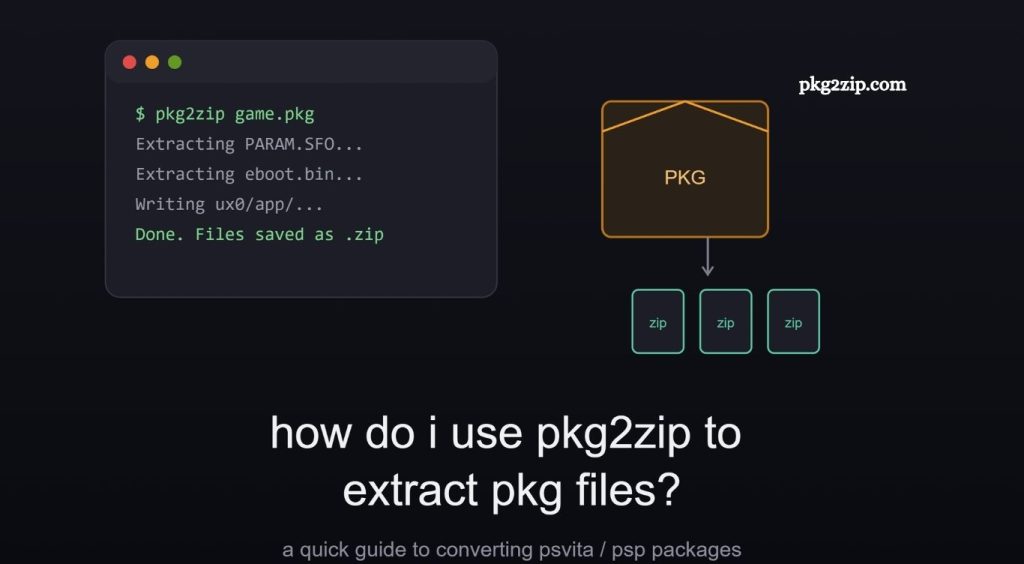
A typical extraction command uses the PKG file as the input:
- pkg2zip -x game.pkg
Replace game.pkg with the actual filename.
For example:
- pkg2zip -x mygame.pkg
The -x option tells pkg2zip to extract the package. Depending on the package structure and pkg2zip version, the program may create an output directory containing the extracted files.
Extracting a PKG From Another Folder
You do not need to move the PKG file into the pkg2zip folder. You can specify the complete path.
For example:
- pkg2zip -x “C:\Users\User\Downloads\game.pkg”
Quotation marks are useful when the path contains spaces.
After processing finishes, check the relevant output directory for the extracted content.
Understanding the Extracted Files
A successful extraction can produce multiple folders and files related to the original Vita package. The exact structure depends on the package.
You may encounter application data, metadata, content files, license-related information, or other files required by the original software environment.
Avoid randomly modifying extracted files unless you understand their purpose. Changing package data can make the resulting content unusable.
Common pkg2zip Errors
PKG File Not Found
A “file not found” message usually means the command points to the wrong location.
Check the filename carefully and confirm that Command Prompt is operating inside the correct directory. Running:
dir
on Windows can display the files in the current folder.
Command Not Recognized
If Windows cannot find pkg2zip, either navigate to the folder containing the executable or specify the complete executable path.
For example:
C:\pkg2zip\pkg2zip.exe -x “C:\Games\game.pkg”
Extraction Fails
Extraction failures can occur because of an unsupported package, corrupted PKG data, an incomplete download, or an incompatible pkg2zip version.
Verify the original file before assuming the utility is malfunctioning. Testing with another known-good compatible package can also help identify the source of the problem.
Incorrect Output
If extracted files appear incomplete or unusable, confirm that the package is supported by your version of pkg2zip. Some PKG files may require a different workflow depending on their origin and encryption.
pkg2zip on Windows
Windows provides one of the simplest environments for using pkg2zip because the executable can be launched directly through Command Prompt.
A basic workflow looks like this:
- cd C:\pkg2zip
- pkg2zip -x game.pkg
PowerShell can also be used. If PowerShell does not execute the program directly, prefix the executable with .:
.\pkg2zip.exe -x game.pkg
Keeping your PKG files organized in separate folders can make repeated extraction tasks easier to manage.
pkg2zip on Linux and macOS
Linux and macOS users can run compatible builds through Terminal. The exact process depends on the version and architecture of the operating system.
After downloading the appropriate executable, you may need to give it execute permission on Unix-like systems:
chmod +x pkg2zip
Then run the extraction command:
./pkg2zip -x game.pkg
If the utility was compiled from source, follow the build instructions supplied with the particular release.
Is pkg2zip Safe?
pkg2zip itself is a utility for processing compatible PKG packages, but users should obtain software from trustworthy sources. Downloading random executables from unofficial websites can expose a computer to malware or modified files.
Before running any executable, scan it with reputable security software and verify its source. Avoid suspicious “cracked” versions or packages that bundle unrelated installers.
The PKG file itself also deserves attention. A legitimate package from a trusted source is considerably safer than an unknown file downloaded from an unverified website.
Tips for Successful PKG Extraction
Use a dedicated working folder for pkg2zip and your PKG files. Keep original packages untouched so they remain available if an extraction attempt fails.
Use descriptive filenames and avoid excessively complicated directory paths. Back up important files before experimenting with extracted data.
Most importantly, confirm that your pkg2zip version supports the specific PKG format you are processing. Different package types may not behave identically.
Conclusion
pkg2zip provides a simple way to extract compatible PKG files through command-line commands. With the correct version, proper file paths, and supported packages, the extraction process remains straightforward. Keeping backups, verifying trusted software sources, and checking compatibility can prevent common errors. For legitimate PlayStation Vita backups and compatible files, pkg2zip remains a useful tool for managing PKG package contents.
Pingback: Is pkg2zip safe to use? - pkg2zip